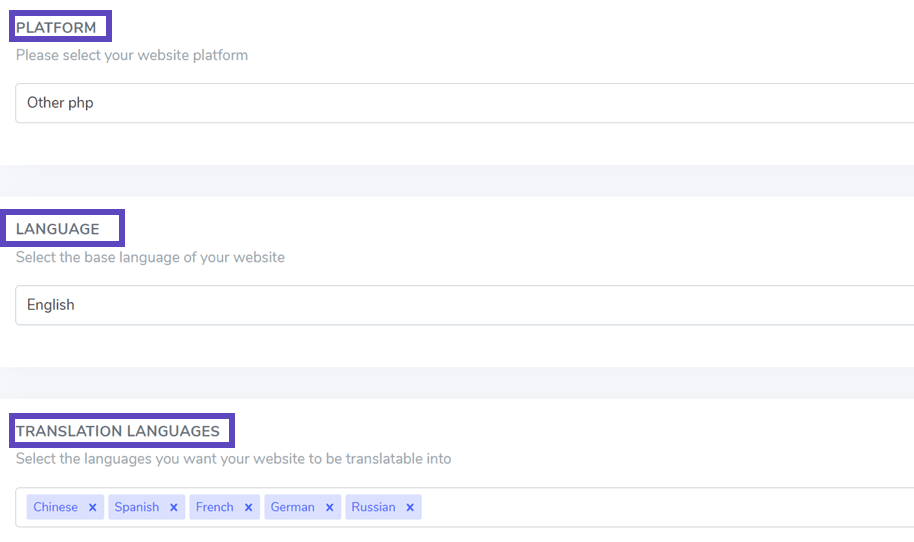
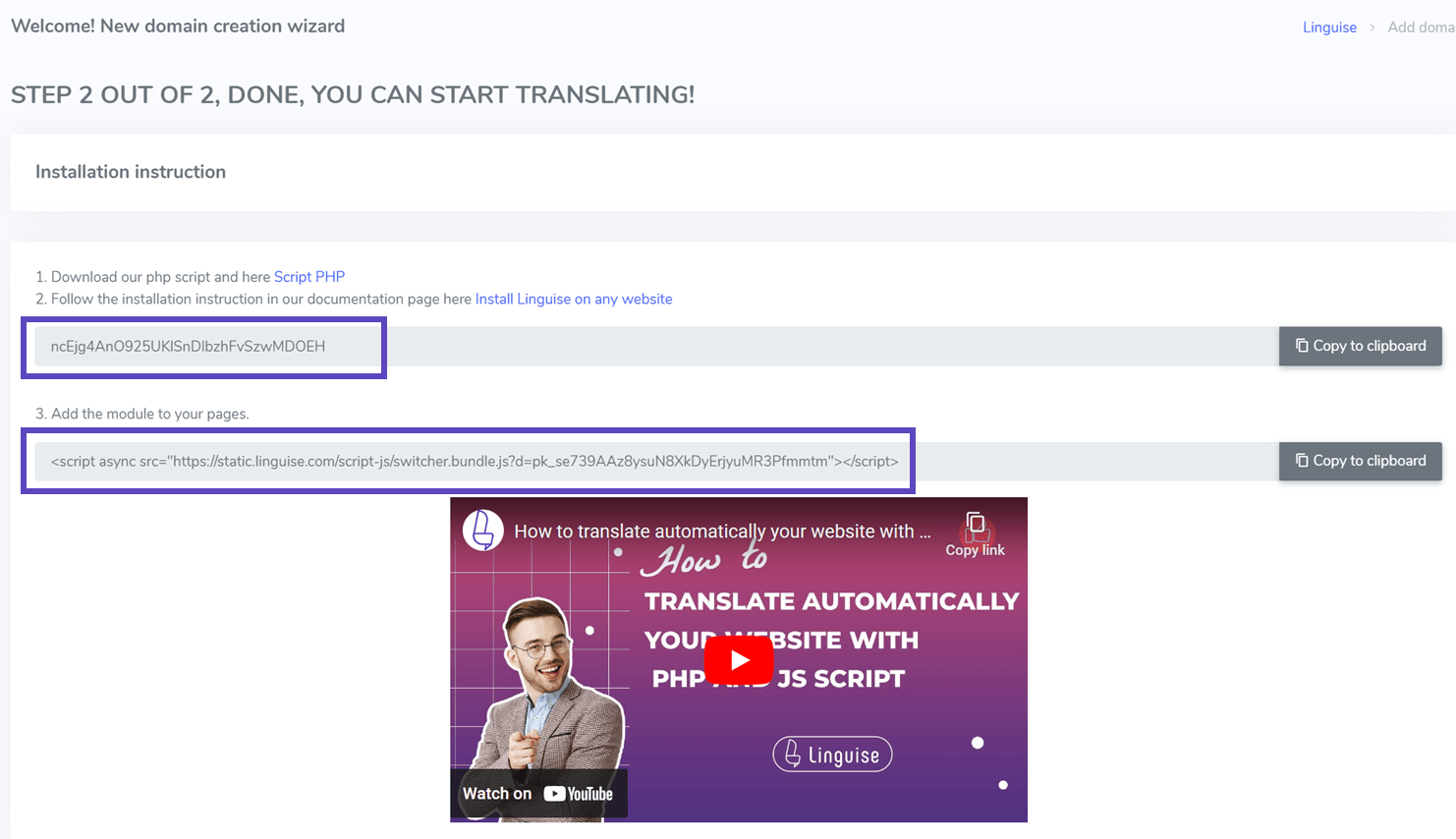
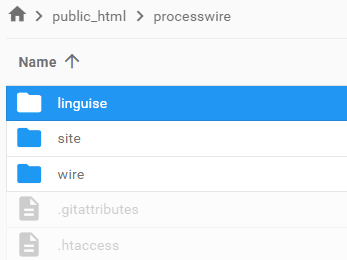
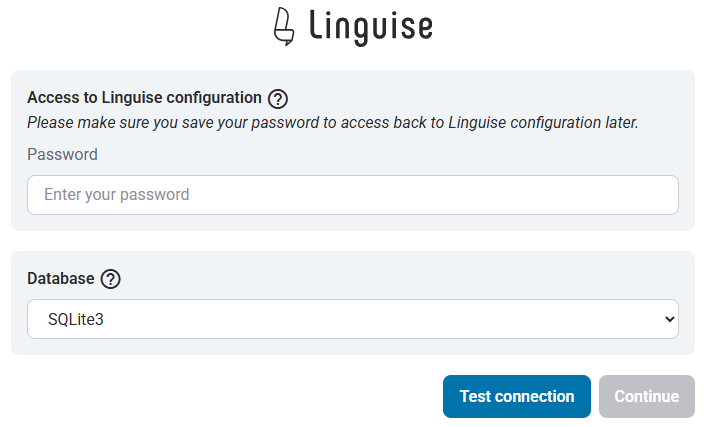
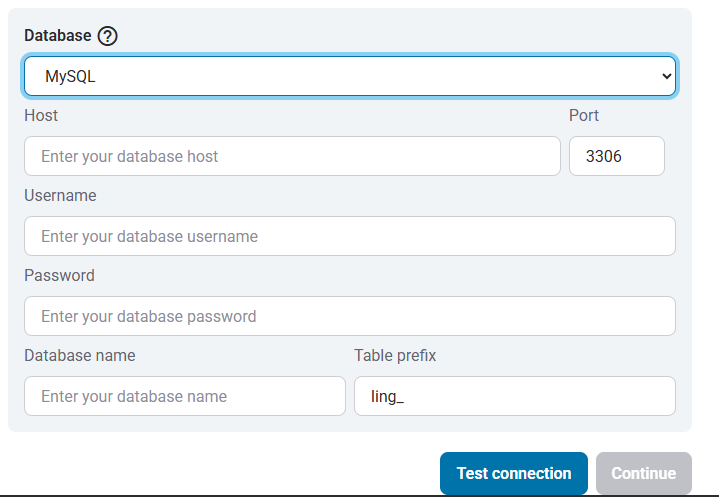
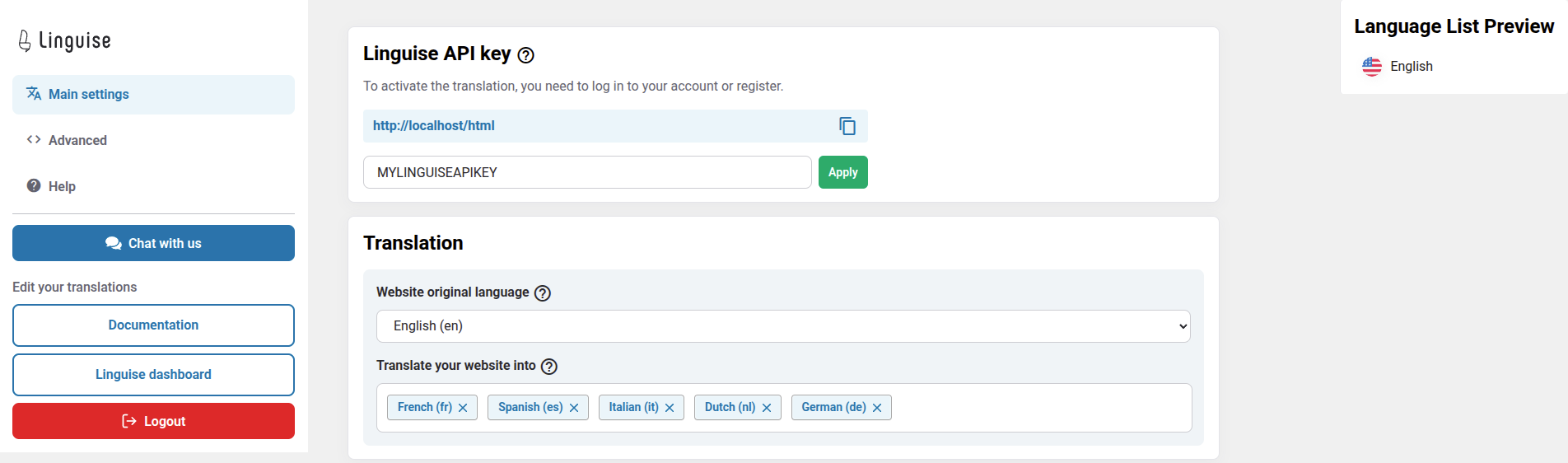
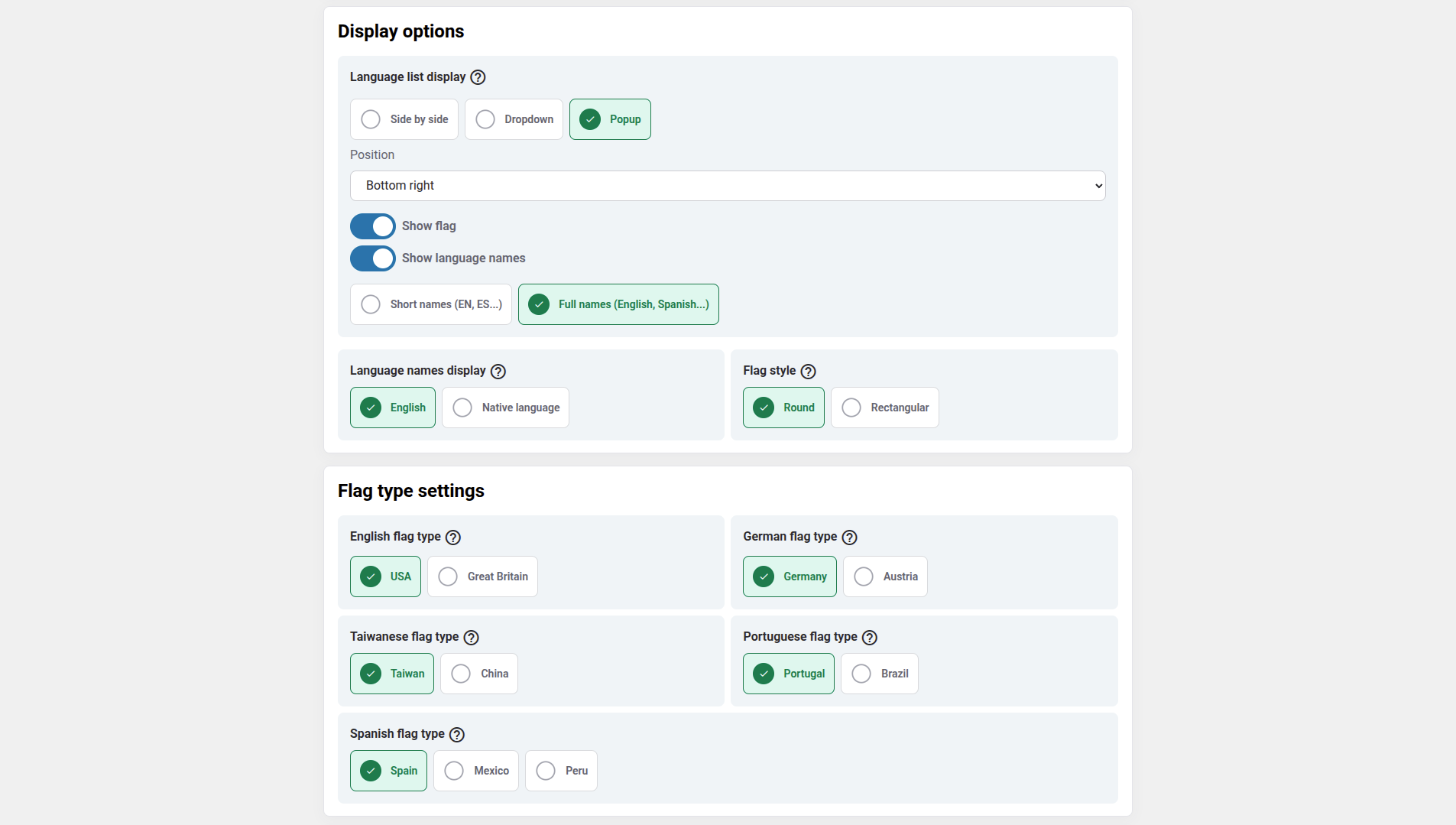
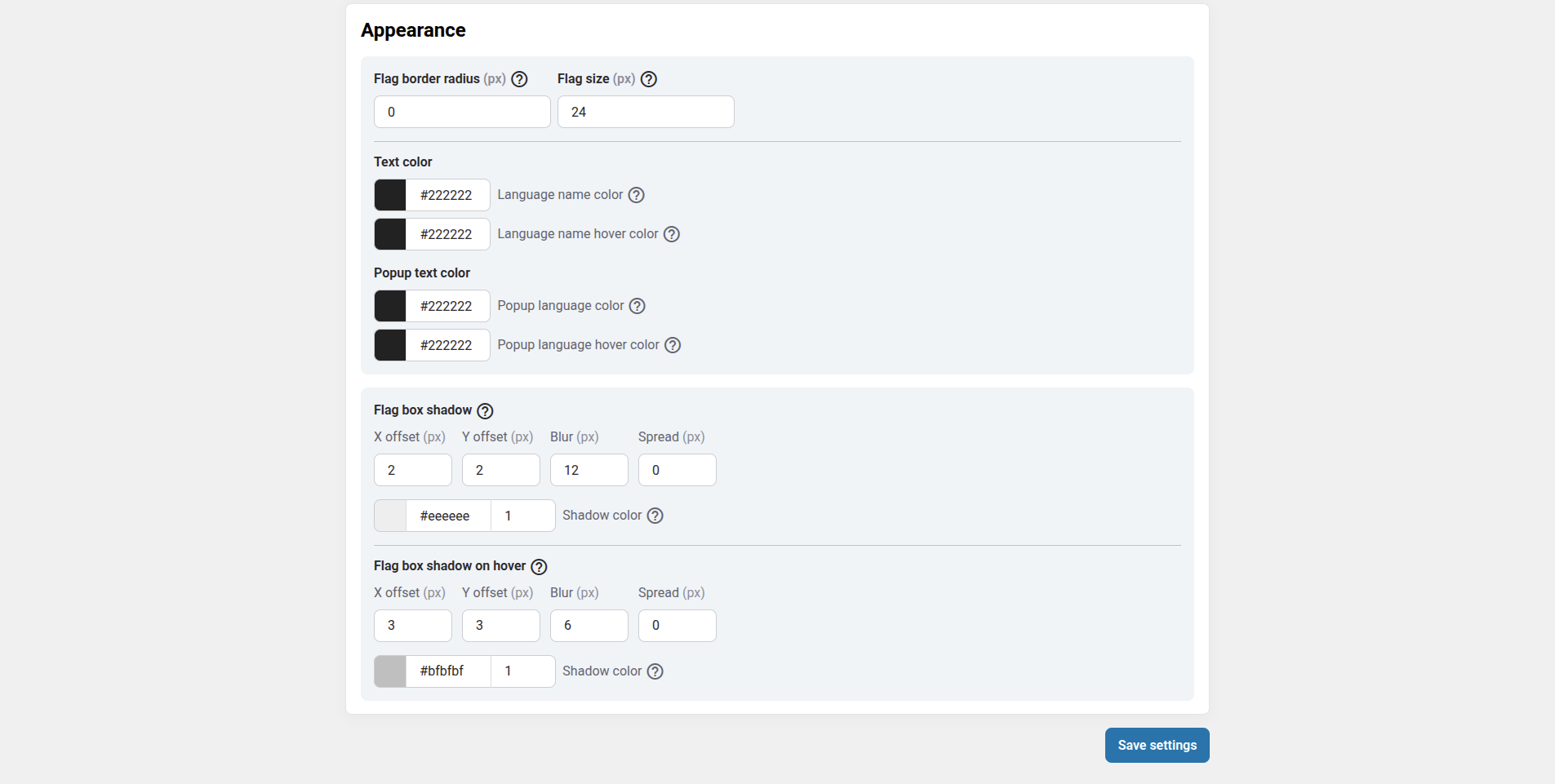
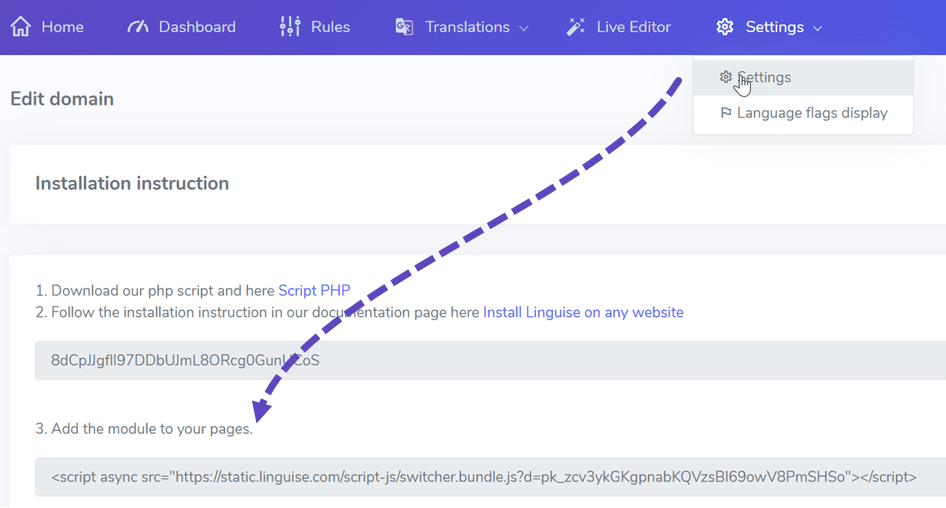
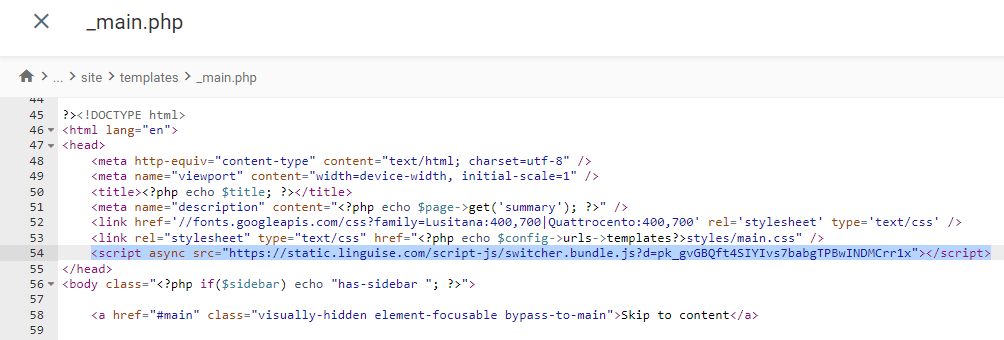
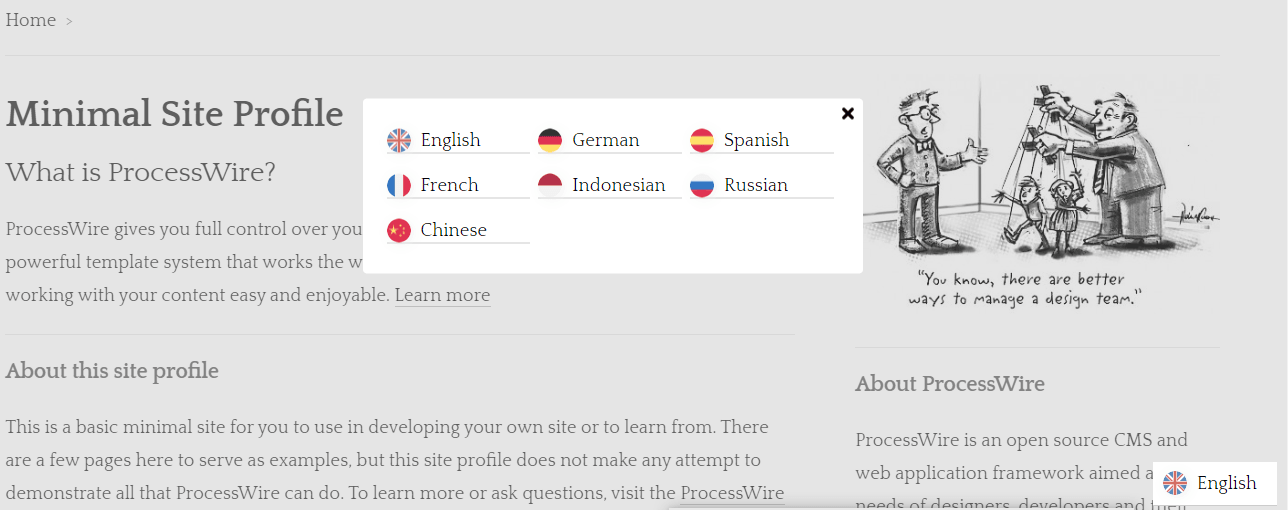
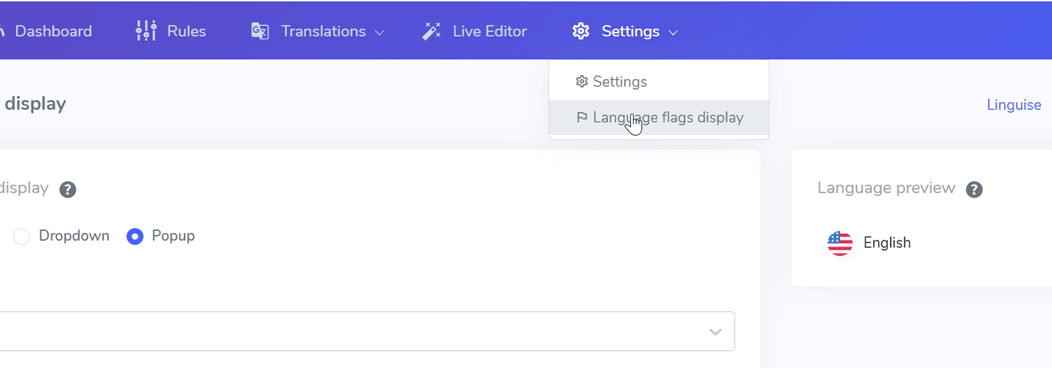
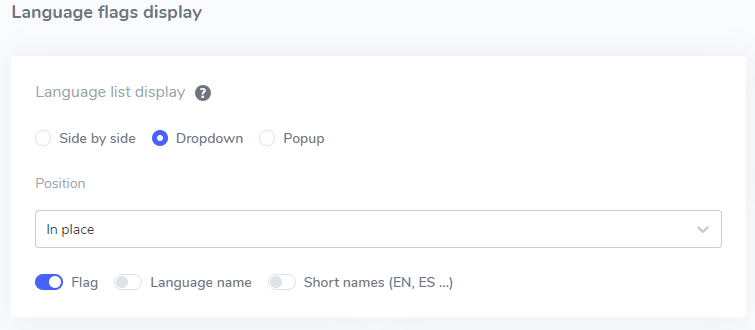
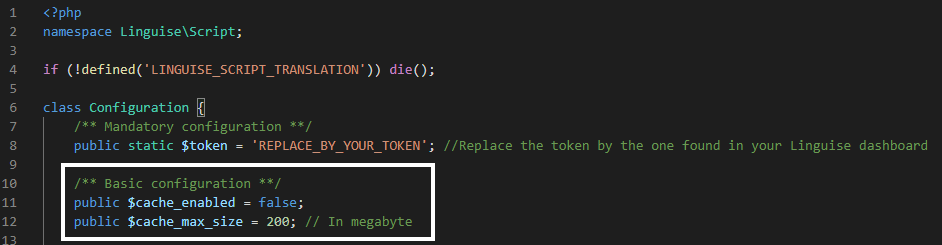
Install Linguise automatic translation on ProcessWire CMS Table of Contents ProcessWire CMS technical requirements The neural automatic translation to be used with ProcessWire CMS will require to use the PHP script (can be downloaded below). To install the Linguise script, you'll need the following requirements:Run PHP 7+Apache, LiteSpeed, NGINX, IIS serverMake sure URL rewriting is activated on your serverProcessWire CMS 2.x or 3 and above 1. Generate the API Key After your connection or registration to your Linguise dashboard, you'll need to setup a new domain first and save its settings to get the API Key.You can select “Other PHP” platform to proceed with Linguise registration domain, like this documentation and the source and destination languages. After that you'll get:The API key that validates your membershipThe link to the Linguise script for the language switcher The API key is what is required to activate the translation on your ProcessWire CMS website. Basically, the API key will check what language is activated on your domain and allows the automatic translation of the content.For now, you can copy the API Key and keep it in your clipboard. 2. Upload and connect the Linguise translation script The Linguise translation script needs to be uploaded on your server where ProcessWire CMS is installed: DOWNLOAD PHP-JS TRANSLATION SCRIPT After the script is downloaded, unzip it and upload it to the root folder where the ProcessWire CMS is installed.Make sure it's at the root level of your website (where your ProcessWire CMS files are located)Make sure the folder keeps its default name "linguise" How to access Linguise Script Interface? After completing the Linguise installation, you can access the dashboard by visiting your website with the following URL format: https://www.domain.com/linguiseChange the domain address according to your website address*Ensure Linguise have proper read and write permission* Setup Password and Database Connection Once you access the script interface, you’ll be presented with a setup screen where you can create a password and connect to your preferred database.You can:Set a password, which will be required for future access to this interface.Choose your database type — either MySQL or SQLite, depending on your setup and preference.This initial setup ensures secure access and allows you to configure the script according to your environment. MySQL database connection If you choose MySQL, a different interface will appear asking for the following connection details of MySQL Configuration Fields below: Make sure the information is correct to establish a successful connection to your MySQL database. MySQL vs SQLite – What's the Difference?Both MySQL and SQLite are popular database systems used to store and manage data for websites and applications. However, they are designed for different use cases and have some key differences:FeatureSQLiteMySQLSetupVery easy (SQLite installation required)Requires server setupStorageSingle fileManaged by MySQL serverPerformanceGreat for small-scale appsBetter for large, high-traffic systemsUse caseLocal apps, testing, small sitesWeb apps, eCommerce, enterprise systems Linguise Script Interface: Setup for PHP platform The Linguise translation dashboard, previously available only for Joomla and WordPress, now extends support to PHP and additional platforms. This update allows users to seamlessly configure language settings—such as display options, flag styles, and appearance customization—directly from a unified interface, regardless of their CMS or framework. Administrators can manage Linguise settings more efficiently, with consistent features like language selection popups, shadow effects, and region-specific flag choices variants. The dashboard retains its user-friendly design while offering broader compatibility for diverse web environments. WE DO UNDERSTAND THAT URLs CONFIGURATION AND LANGUAGE SWITCHER ARE A BIT TECHNICAL TO CONFIGURE; BUT GOOD NEWS! WE OFFER FREE INSTALLATION CONTACT OUR TECHNICAL SUPPORT 3. Setup the ProcessWire CMS URLs rewriting By default, the URL rewriting is active in ProcessWire CMS. If that's not the case, you can activate it from your hosting provider.The URL by language needs to be configured in the .htaccess. Just copy the code below after the code "RewriteEngine on" available in the default ProcessWire CMS .htaccess. RewriteEngine On RewriteRule ^(af|sq|am|ar|hy|az|eu|be|bn|bs|bg|ca|ceb|ny|zh-cn|zh-tw|co|hr|cs|da|nl|en|eo|et|tl|fi|fr|fy|gl|ka|de|el|gu|ht|ha|haw|iw|hi|hmn|hu|is|ig|id|ga|it|ja|jw|kn|kk|km|ko|ku|ky|lo|la|lv|lt|lb|mk|mg|ms|ml|mt|mi|mr|mn|my|ne|no|ps|fa|pl|pt|pa|ro|ru|sm|gd|sr|st|sn|sd|si|sk|sl|so|es|su|sw|sv|tg|ta|te|th|tr|uk|ur|uz|vi|cy|xh|yi|yo|zu|zz-zz)(?:$|/)(.*)$ linguise/linguise.php?linguise_language=$1&original_url=$2 [L,QSA] Finally, your ProcessWire CMS .htaccess should look something like this: # 8. Enable Apache mod_rewrite (required) # ----------------------------------------------------------------------------------------------- RewriteEngine On RewriteRule ^(af|sq|am|ar|hy|az|eu|be|bn|bs|bg|ca|ceb|ny|zh-cn|zh-tw|co|hr|cs|da|nl|en|eo|et|tl|fi|fr|fy|gl|ka|de|el|gu|ht|ha|haw|iw|hi|hmn|hu|is|ig|id|ga|it|ja|jw|kn|kk|km|ko|ku|ky|lo|la|lv|lt|lb|mk|mg|ms|ml|mt|mi|mr|mn|my|ne|no|ps|fa|pl|pt|pa|ro|ru|sm|gd|sr|st|sn|sd|si|sk|sl|so|es|su|sw|sv|tg|ta|te|th|tr|uk|ur|uz|vi|cy|xh|yi|yo|zu|zz-zz)(?:$|/)(.*)$ linguise/linguise.php?linguise_language=$1&original_url=$2 [L,QSA] # 8A. Optionally (O) set a rewrite base if rewrites are not working properly on your server. # ----------------------------------------------------------------------------------------------- You can now load all your translated pages using the URL, for example: www.shop.com/fr/Let's now load the language switcher. WE DO UNDERSTAND THAT URLs CONFIGURATION AND LANGUAGE SWITCHER ARE A BIT TECHNICAL TO CONFIGURE; BUT GOOD NEWS! WE OFFER FREE INSTALLATION CONTACT OUR TECHNICAL SUPPORT 4. Activate the language switcher 4.1 Load the Linguise JS script The Linguise JS script link needs to be loaded on all your ProcessWire CMS pages to display the language switcher with flags and alternate URLs in your HTML headers (for SEO purpose).To copy the script link, from the Linguise dashboard go to the domain settings and copy the script link. The easiest way to load this code in ProcessWire CMS is to add it inside your website header or <head> section. ProcessWire CMS comes has a specific file to load a script to the header.It's located in _main.php you can find it by navigating to site/templates/_main.php. Edit the script file to include the script link in the header section.The language switcher with flags should now be loaded automatically. The language switcher will be displayed by default in a floating top right position on your website. You are welcome to customize it as explained in the next chapter. SEO important note: The number of languages you setup has a large impact on SEO. When you setup your translation languages, if you have a large amount of indexed pages (>500), search engine may take a lot of time to process them. It may impact your SEO in your original language. That's why we recommend adding at first a maximum of 5 languages, then when it's indexed, you can add languages in a batch of 3 per month. Setup the language switcher The language switcher can be customized from the Linguise dashboard > Settings > Language flags display. Every modification here will be reflected on the website. On the right side of the screen you have the preview of the language switcher. Here are the elements you can setup:3 layouts: side by side, dropdown or popupThe language switcher positionThe language switcher contentLanguage names in English or native languageFlags shapes and sizeColors and box shadow Load the language switcher in ProcessWire content To display the Language switcher at the specific place, in the ProcessWire content, you should set the position as "In place". Once you have set the position in the Linguise dashboard, you can add the shortcode below to include it. Click on the code below to put it in your clipboard. [linguise] Once it's added, on the frontend you'll have the flag and language names displayed in the HTML area you've added the code. Activate the local cache system option As an option, you can activate a local cache system that stores URLs and its related multilingual content to serve the pages faster. The local cache will save some data transfer between Linguise server and your website server. The cache is used only when a page has already been translated and has not been updated. The cache kept in priority will be the cache from the most viewed multilingual pages.To complement that, you can define the amount of cache stored in MB. In the following example, the cache is activated and the amount of cache to keep is 500 MB. /** Basic configuration **/ public $cache_enabled = true; public $cache_max_size = 500; // In megabyte Automatic translation on Windows IIS servers Add the line corresponding to your website builder in your Web.config file.It should be set before any other redirection, especially the redirection to your PHP main file: Automatic translation on NGINX servers Add the line corresponding to your CMS in your NGINX server configuration block.It should be set before any other redirection, especially the redirection in your PHP main file. rewrite ^/(af|sq|am|ar|hy|az|eu|be|bn|bs|bg|ca|ceb|ny|zh-cn|zh-tw|co|hr|cs|da|nl|en|eo|et|tl|fi|fr|fy|gl|ka|de|el|gu|ht|ha|haw|iw|hi|hmn|hu|is|ig|id|ga|it|ja|jw|kn|kk|km|ko|ku|ky|lo|la|lv|lt|lb|mk|mg|ms|ml|mt|mi|mr|mn|my|ne|no|ps|fa|pl|pt|pa|ro|ru|sm|gd|sr|st|sn|sd|si|sk|sl|so|es|su|sw|sv|tg|ta|te|th|tr|uk|ur|uz|vi|cy|xh|yi|yo|zu|zz-zz)(?:$|/)(.*)$ /linguise/linguise.php?linguise_language=$1&original_url=$2 last; REGISTER AND TRANSLATE NOW