

Searchanise autocomplete makes it easier for WooCommerce visitors to find products by showing relevant suggestions as they type. However, when a store serves multiple languages, autocomplete results may not always work correctly on translated pages. In one reported case, Searchanise returned product suggestions on the original English pages but failed to show any results when visitors searched from translated versions of the store.
To address this issue, Linguise has developed a custom integration that supports Searchanise autocomplete translation on multilingual WooCommerce stores. With the integration enabled and Searchanise re-indexed for the available languages, visitors can search for products in their preferred language while continuing to get relevant autocomplete results.
Key points: Searchanise autocomplete translation for multilingual WooCommerce stores
Searchanise autocomplete translation
Linguise now supports Searchanise autocomplete translation, allowing multilingual WooCommerce visitors to see relevant product suggestions when searching in their preferred language.
Simple integration setup
Install Searchanise, update Linguise to the latest version, activate the Searchanise integration, and re-index the search index to synchronize translated product data.
Multilingual store testing
Verify that Searchanise search, cart, checkout, and order pages work correctly across languages for a smoother multilingual shopping experience.
Linguise x Searchanise autocomplete integration

The Linguise x Searchanise integration makes product search more seamless across multilingual ecommerce stores. Here’s how it addresses autocomplete issues and keeps search results available across translated pages.
What was the issue?
Searchanise provides smart search and autocomplete for WooCommerce stores, helping visitors find products faster by displaying relevant suggestions as they type. This makes product discovery easier, especially for stores with a large product catalog.
However, the autocomplete feature did not work as expected on translated pages. While search and autocomplete worked correctly on the original-language version, translated pages could return no product suggestions. For multilingual visitors, this could make it harder to find products using the search box, even when the products were available in the store.
How Linguise solves it
To address this issue, Linguise has developed a custom plugin that supports Searchanise autocomplete translation on multilingual WooCommerce stores. The integration connects Linguise’s translated content with Searchanise’s autocomplete functionality, allowing search suggestions to work across different language versions of the website.
After enabling the integration, Searchanise needs to be re-indexed so the available languages can be synchronized with its search index. Once the synchronization is complete, visitors can use the search and autocomplete feature on translated pages and find relevant product results in their preferred language.
How to enable Searchanise autocomplete translation

Follow these steps to enable Searchanise autocomplete translation on your multilingual WooCommerce store.
Install Searchanise and update Linguise
Start with an existing WooCommerce store and install and activate the Searchanise plugin. Searchanise will provide the smart search and autocomplete functionality that will be used across the multilingual store.
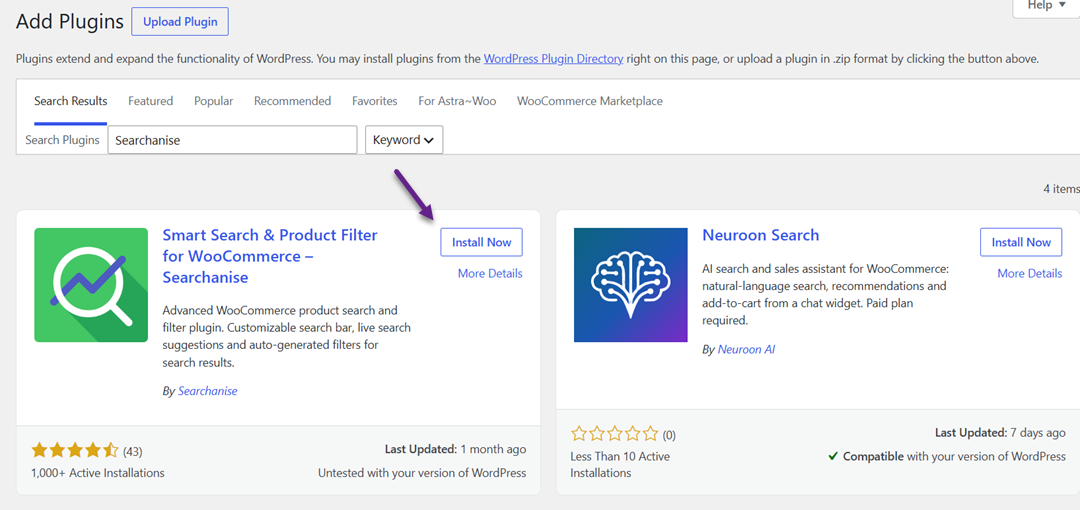
Next, make sure Linguise is updated to the latest version that supports the Searchanise integration. Once both Searchanise and the latest Linguise version are ready, you can continue with the integration settings.
Activate Searchanise integration in Linguise
Next, open the Linguise plugin settings and go to Advanced > Third-party integrations.
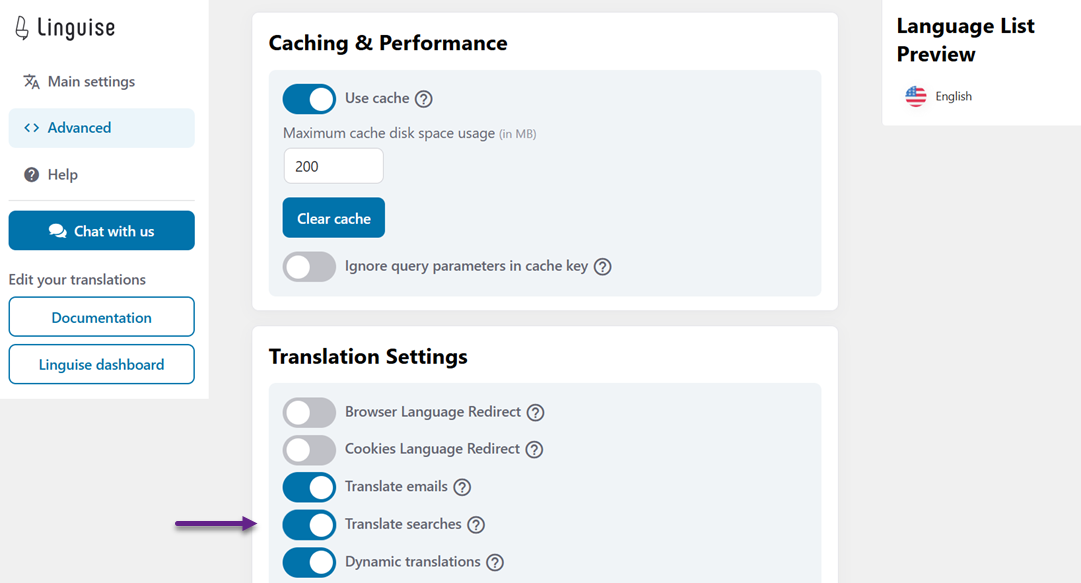
Find Searchanise in the integration list and set its status to Active. This enables Linguise to work with Searchanise’s autocomplete functionality across your translated pages.
Re-index Searchanise
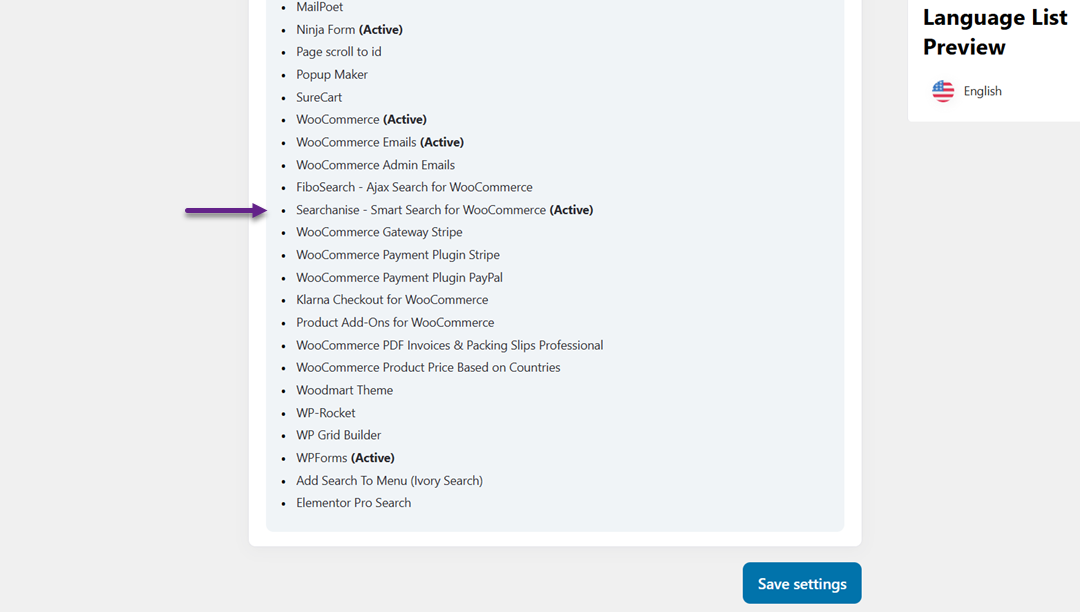
After activating the integration, open your Searchanise settings and click Sync to force a new synchronization. Wait until Searchanise finishes synchronizing all supported languages before testing the search feature.
Re-indexing is important because it allows Searchanise to update its search index with the translated product data. Once synchronization is complete, the translated product information can be used for autocomplete suggestions on your multilingual store.
Test Searchanise on your multilingual store

After enabling the integration and completing the Searchanise synchronization, you can test how the different parts of your WooCommerce store work across languages. The following checks can help confirm that product search and other shopping flows remain functional on translated pages.
Search translation
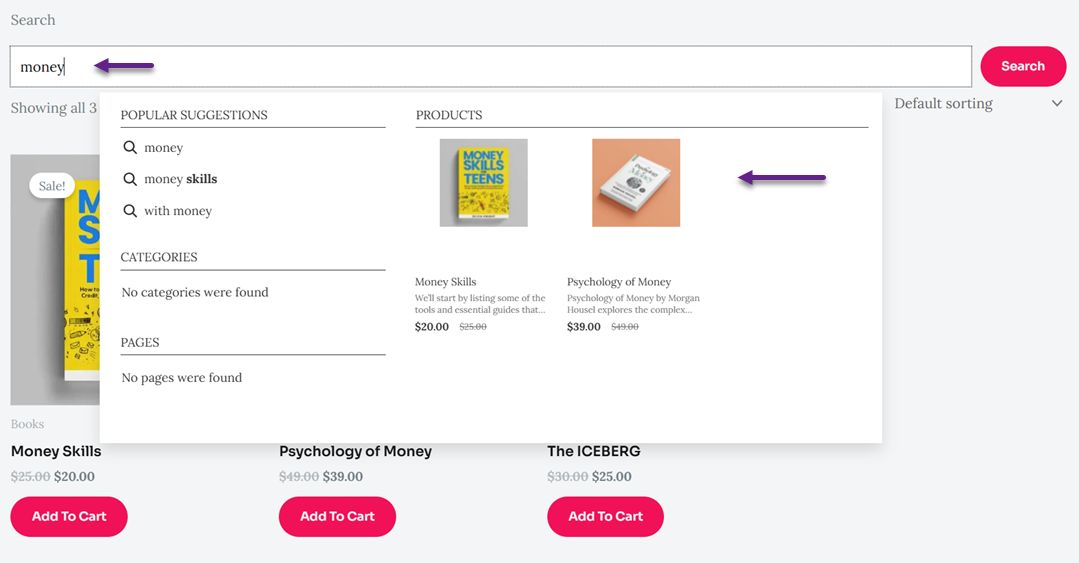
Start by opening your WooCommerce store in one of the translated languages and using the Searchanise search box. Enter a product-related keyword in the selected language and check whether the autocomplete suggestions appear correctly.
The search results should display relevant products based on the translated search term. You can also switch between the original and translated versions of the store to confirm that Searchanise autocomplete works consistently across languages. The comparison below shows how the Searchanise search works in English, the default language.
Then, in Indonesian, the translated language.
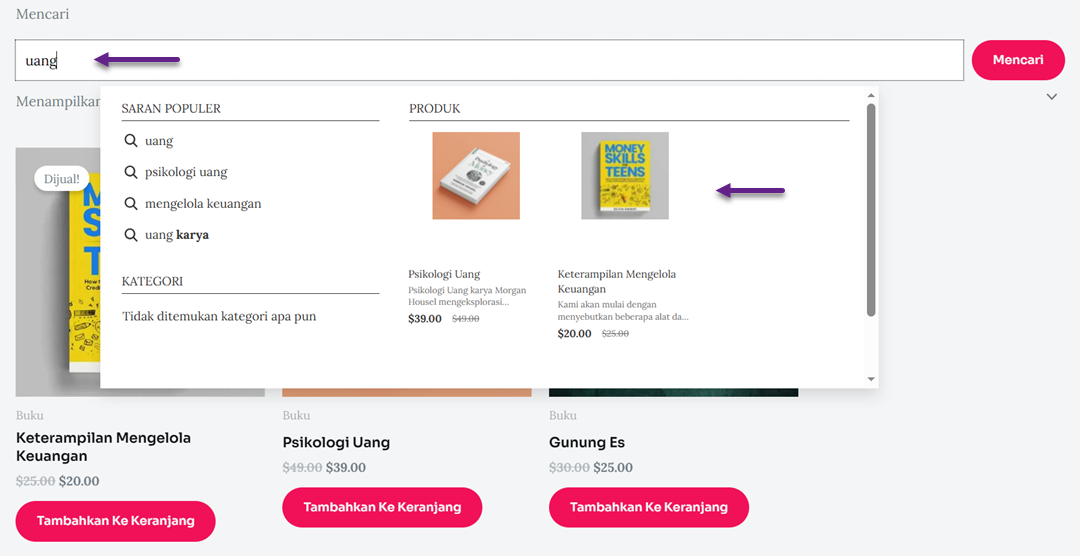
Make sure to check both versions separately to confirm that the autocomplete results are displayed correctly.
Cart translation
Next, add one or more products to the cart from a translated product page. Check that the cart page and its main elements, such as product names, quantities, prices, and buttons, are displayed correctly in the selected language.
You can then change the website language and verify that the cart content remains available while the translated elements update accordingly. The comparison below shows the cart in English, the default language.
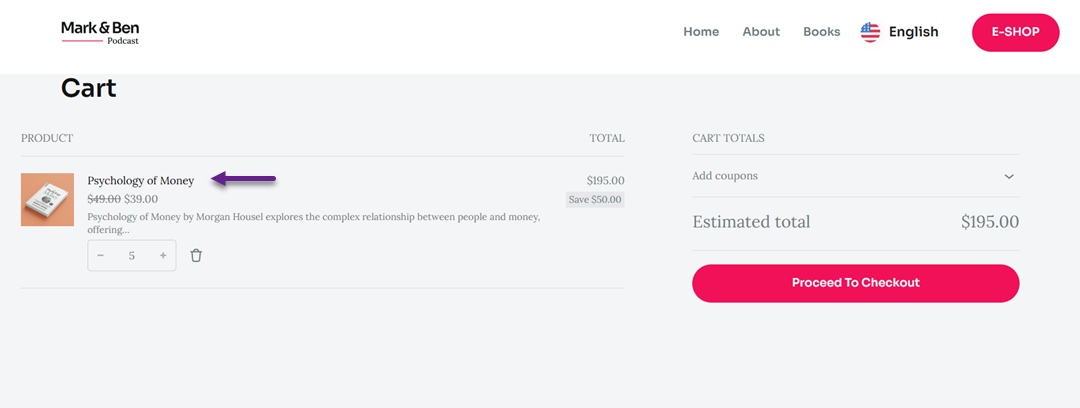
Then, the image below is in Indonesian, the translated language.
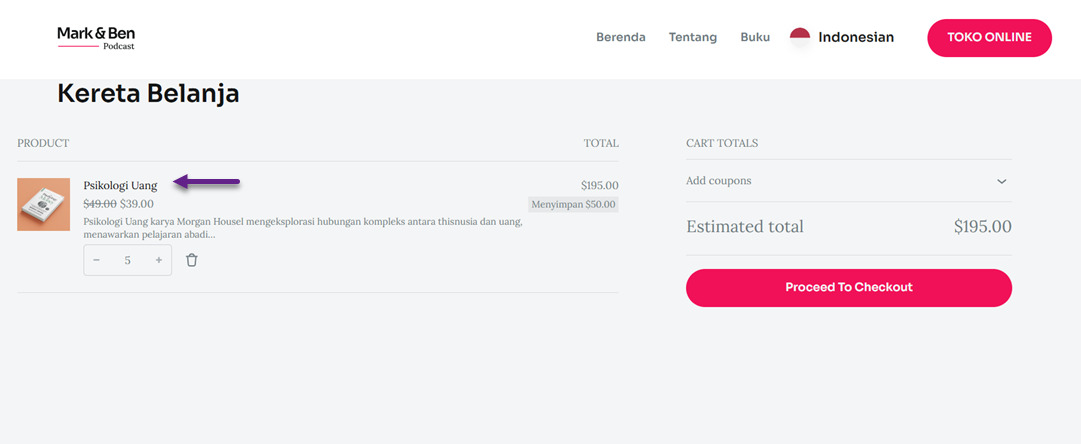
Check both versions separately to make sure the cart content and its translated elements are displayed correctly.
Checkout and order translation
Continue to the checkout page and review the translated elements, including billing and shipping fields, payment information, and order details. Make sure the checkout flow remains functional and that the translated content is displayed correctly throughout the process.
Finally, complete a test order and check the resulting order information. Check both versions separately to make sure the checkout elements and order information are displayed correctly in each language.
The example below shows the checkout page in Indonesian, with the translated billing, shipping, and payment fields displayed correctly.
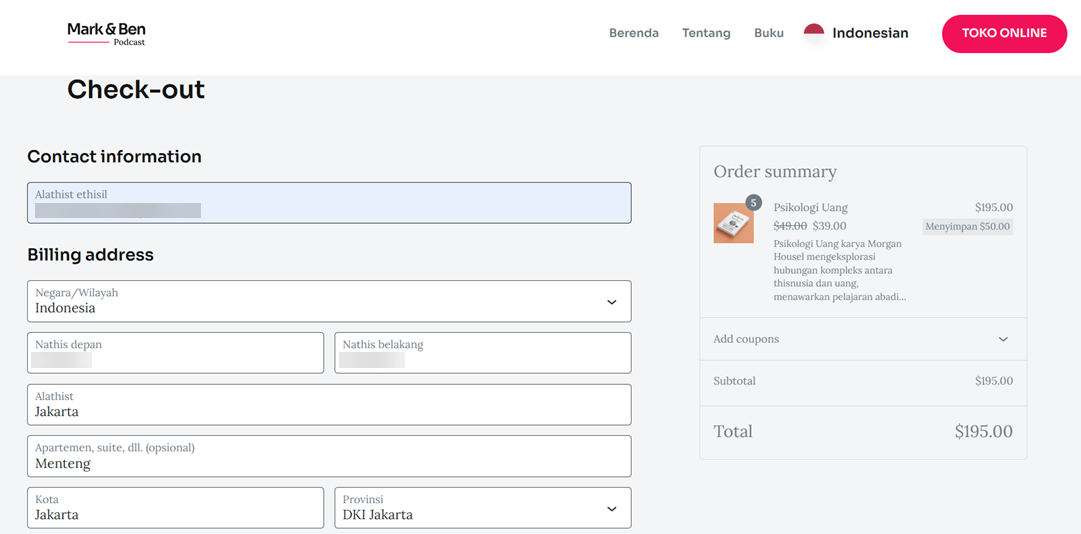
After completing the order, the order details are also displayed in Indonesian, as shown in the example below. This confirms that the translated content continues through the checkout and order process.
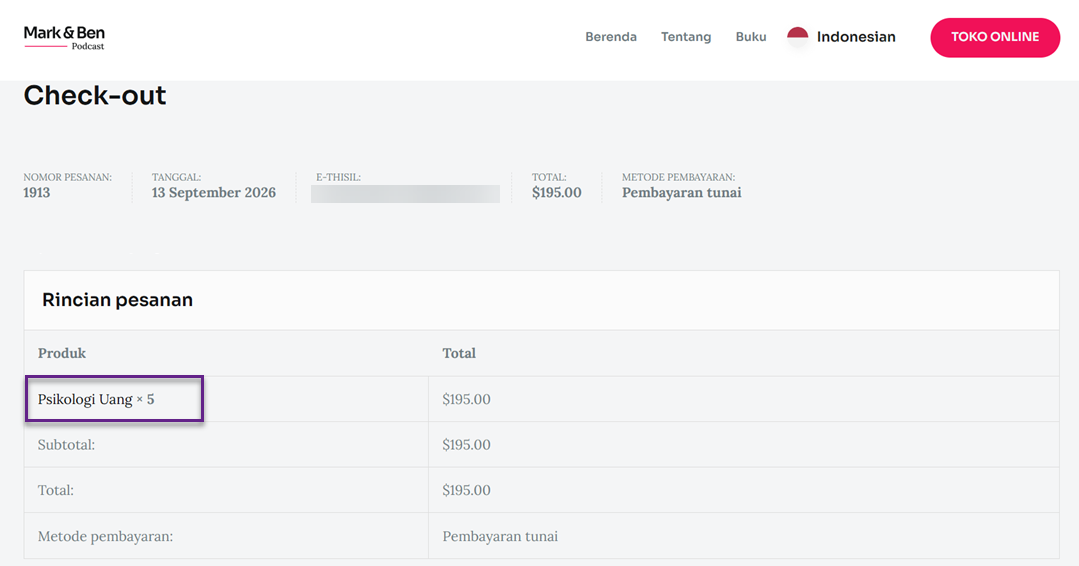
If email translation is enabled, you can also verify whether the order confirmation email is translated correctly, ensuring a consistent multilingual experience from search to purchase.
Conclusion
Searchanise autocomplete translation helps create a smoother search experience for multilingual WooCommerce stores, allowing visitors to find relevant products across translated pages. With the Linguise x Searchanise integration, store owners can keep autocomplete and product search functional across different languages with a simple synchronization process.
If you’re looking to improve the multilingual experience of your WooCommerce store, you can try Linguise and explore how its translation features work with your existing setup.