







Table of Contents
Setting up translated subdomains requires the correct DNS, SSL/TLS, and origin configuration. To make troubleshooting easier, Linguise now provides a subdomain translation debugger that checks your setup and highlights configuration or connectivity issues.
The debugger helps you identify what is causing a setup check to fail and provides the relevant error information so you can fix the issue and verify your configuration again.
What does the Subdomain Translation Debugger check?
The debugger checks DNS configuration, SSL/TLS connections, and the original website (origin). It verifies domain ownership, translated subdomain CNAME records, A/AAAA records, certificates, and HTTPS availability.
It also checks whether the origin is publicly reachable and returns a usable HTTP response. Each check returns a status and, when applicable, an error code.
Understanding diagnostic results
The debugger uses different statuses to show the result of each check.
Failed
A Failed status means the debugger detected a configuration or connectivity problem that needs to be fixed. Check the error code and diagnostic details to identify the affected component, such as DNS, SSL/TLS, or the origin website. After fixing the issue, run the setup check again to verify the result.
Warning
A Warning status means the website is reachable, but its response may prevent reliable translation or indicate a potential configuration issue. Review the diagnostic details and check the origin website, server, or network configuration as indicated. Once the issue is addressed, rerun the setup check.
Unknown
An Unknown status means the debugger could not establish a reliable result for the check. Retry the setup check first. If the status persists, review the diagnostic information and investigate whether an underlying DNS, TLS, or connectivity issue is causing it.
Skipped
A Skipped status means the check could not run because a required previous check failed. For example, a TLS check may be skipped when the translated hostname cannot be resolved through DNS. A Skipped status means the check could not run because a previous check failed. Fix the earlier failed check first, then rerun the setup check.
DNS errors
DNS errors occur when the records required to connect your translated subdomains or original website are missing, incorrect, or cannot be resolved.
Incorrect or missing subdomain CNAME
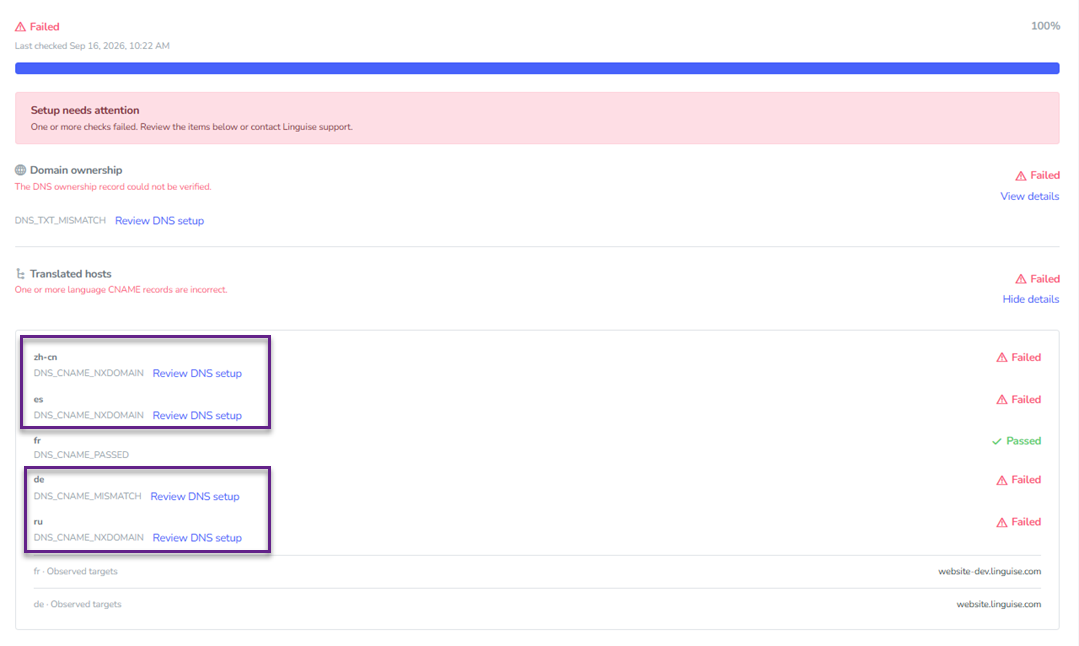
This error means that a translated language hostname does not resolve to the required Linguise CNAME target.
Check the DNS configuration for the affected language hostname and make sure its CNAME points to the Linguise target provided during setup. If the record is missing or points to the wrong target, update it with your DNS provider. The debugger may report the following errors:
- DNS_CNAME_NXDOMAIN: the translated hostname cannot be resolved.
- DNS_CNAME_MISMATCH: the CNAME points to an incorrect target.
Domain ownership verification
This error means that the required _linguise TXT record is missing or its value does not match the current verification value. The debugger may report DNS_TXT_MISMATCH when the TXT record does not contain the expected verification value.
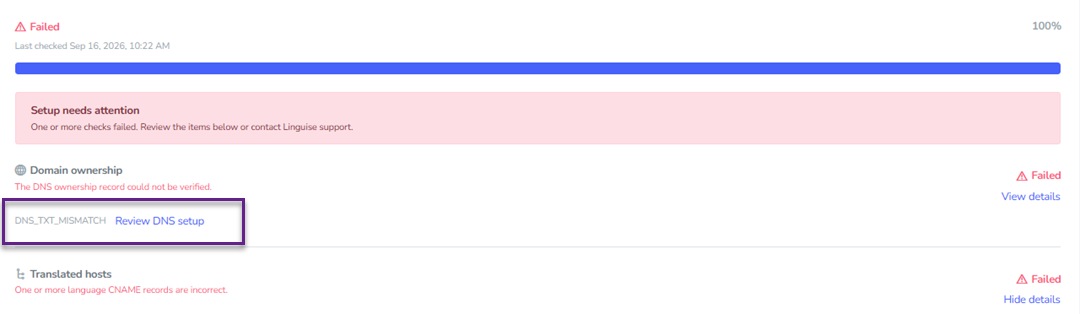
Open your DNS provider and check the _linguise.<domain> TXT record. Add the record if it is missing, or update its value to the verification value provided by Linguise.
Do not remove unrelated TXT records from your domain. After the DNS change has propagated, run the setup check again.
Original domain DNS error
This error means that the original domain does not resolve to a usable public A or AAAA record. Check your DNS records and make sure the domain resolves to the correct public IP address.
If the record is missing or incorrect, update it with your DNS provider. Wait for the DNS changes to propagate, then run the setup check again.
SSL/TLS errors
SSL/TLS errors occur when Linguise cannot establish a valid secure HTTPS connection to the translated subdomain or the original website.
Translated subdomain SSL/TLS error
This error means that Linguise could not establish a valid TLS connection to the translated hostname.
Check that the hostname has a valid, non-expired SSL certificate that matches the exact hostname. Also verify that the certificate chain is complete and that HTTPS is available on port 443.
If you use a CDN, reverse proxy, or WAF, check its TLS configuration and make sure it does not prevent the connection. After fixing the configuration, run the setup check again.
Original website SSL/TLS error
This error means that Linguise could not establish a valid HTTPS connection to the original website.
Check the origin certificate for expiration, hostname mismatch, incomplete certificate chain, or other TLS configuration problems. If your website uses a CDN or reverse proxy, also verify that the correct certificate is being served for the origin connection. Fix the certificate or TLS configuration, then rerun the setup check.
Origin website errors
Origin errors occur when Linguise cannot properly reach the original website or does not receive a usable response from it.
Origin destination error
This error means that the configured origin resolves to a destination that Linguise cannot access. Make sure the domain resolves to a publicly reachable destination.
If the origin uses a private, loopback, or link-local address, update the origin configuration to use a publicly reachable destination, then run the setup check again.
Origin HTTP errors
This error means that Linguise can reach the original website but receives an HTTP response that may prevent reliable translation.
Common causes include request timeouts, authentication requirements, rate limiting, redirects, or server errors. Check the origin website directly and review your server, firewall, WAF, authentication, and rate-limiting configuration.
Make sure the original website can return a valid response to requests from Linguise, then rerun the setup check.
Diagnostic and runtime errors
Diagnostic and runtime errors are related to the debugger or its diagnostic process rather than necessarily indicating a DNS, TLS, or origin configuration problem.
CORE_CHECKER_FAILED
This error means that the core diagnostic checker failed to complete the check successfully. Retry the setup check and review the diagnostic details if available. If the error continues to occur, check whether any configuration or connectivity issue may be affecting the diagnostic process.
DIAGNOSTIC_CONFIG_CHANGED
This error means that the diagnostic configuration changed while the check was running, so the result may no longer be valid. Run the diagnostic again using the current configuration to ensure that the check uses the latest settings.
DIAGNOSTIC_DEADLINE_EXCEEDED
This error means that the diagnostic operation did not finish within the allowed time. Retry the setup check and review the diagnostic details to determine whether the check is being delayed by the current configuration or connectivity.
DIAGNOSTIC_DOMAIN_NOT_FOUND
This error means that the diagnostic could not find or resolve the configured domain. Check that the domain is correctly configured and that its DNS records are publicly available. After correcting any DNS or domain configuration issue, run the setup check again.
DIAGNOSTIC_INVALID_REQUEST
This error means that the diagnostic request could not be processed because the request was invalid. Retry the setup check and make sure the diagnostic is running with the current configuration and valid request details.
DIAGNOSTIC_PROBE_FAILED
This error means that an individual diagnostic probe failed to complete successfully. Retry the diagnostic and review the available details to identify which probe failed and whether the issue is related to the current configuration or connectivity.
DIAGNOSTIC_FAILED
This error means that the overall diagnostic process failed to produce a valid result. Retry the setup check and review any available diagnostic details, including the affected hostname, request ID, and timestamp, to help identify the cause.
If the error persists after retrying and checking the relevant configuration, provide the error code and diagnostic request details to Linguise support for further investigation.
How to resolve the issue
When troubleshooting a failed setup check, fix the issues in the order indicated by the diagnostic results:
- Domain ownership and DNS: Make sure the required TXT, CNAME, and A/AAAA records are correctly configured and publicly resolvable.
- SSL/TLS: Check the relevant certificates, hostname configuration, certificate chain, and HTTPS availability.
- Origin: Make sure the original website is publicly reachable and that its server, firewall, WAF, authentication, and rate-limiting configuration allow Linguise to access it.
- Run Check setup again: After applying the necessary fixes and allowing time for DNS changes to propagate, run Check setup again.
Fixing an earlier DNS or connectivity error may also resolve dependent TLS or origin errors, as well as checks that were previously marked as Skipped.
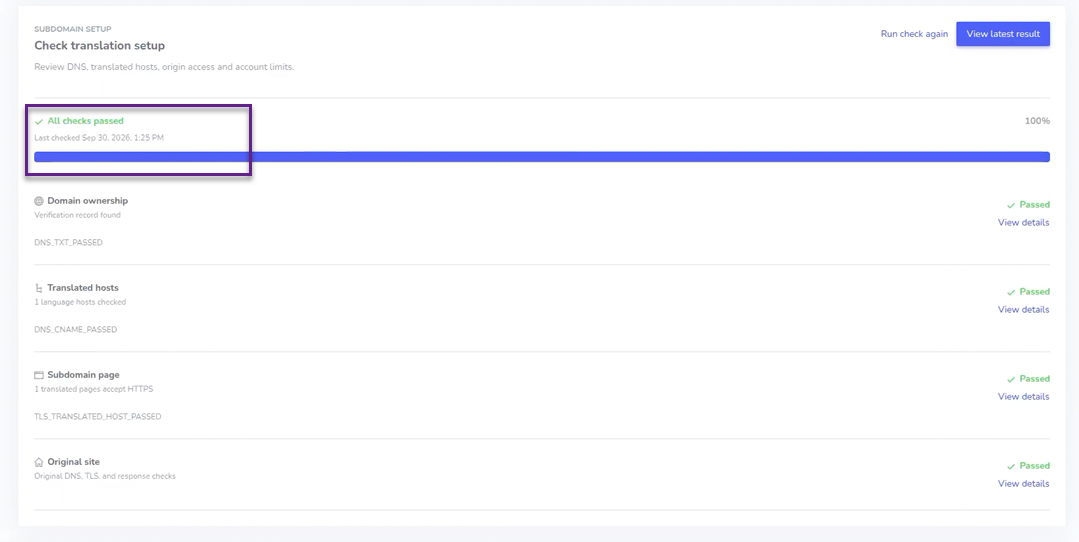
The subdomain translation debugger makes it easier to identify and troubleshoot DNS, SSL/TLS, and origin issues affecting translated subdomains. Review the reported error, apply the recommended fix, and run Check setup again to confirm that your configuration is working correctly.
If the issue persists after following the recommended troubleshooting steps, contact Linguise support for further assistance.