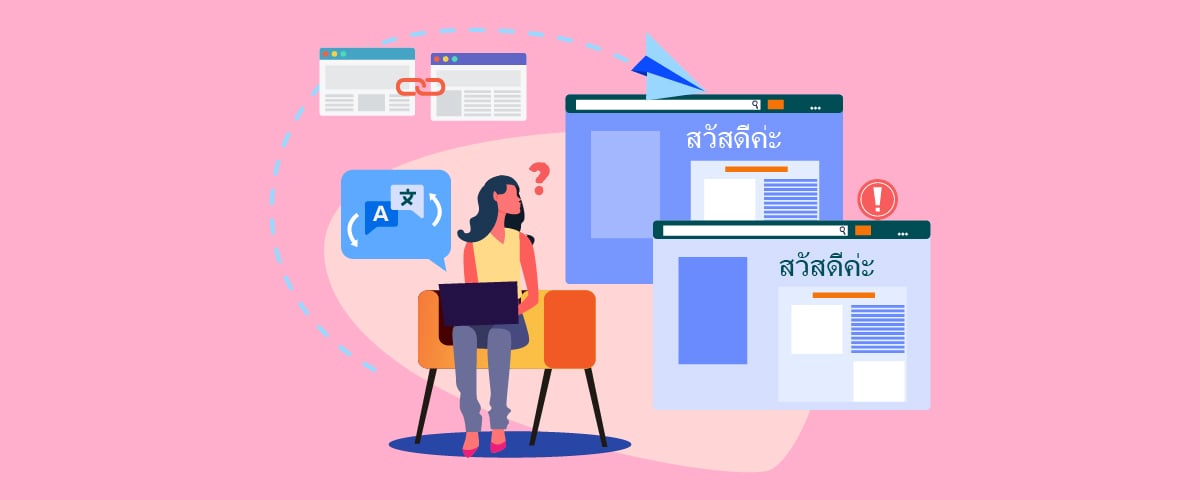
Multilingual internal linking helps visitors navigate between pages on a website in their preferred language. However, translated website pages do not always link to the correct language versions of other pages. Instead, some internal links may still point to the default language, sending visitors to content they may not understand and making navigation less consistent.
These issues can happen because of hard-coded URLs, page builder settings, or plugin behavior. They can also affect how search engines discover and index your multilingual pages. In this article, we’ll explore why internal links revert to the default language and how to identify and fix these issues. Read on to learn how to keep your links consistent across language versions.
Key points: Managing internal links Across different language versions
Causes of default-language internal links
Hard-coded URLs, page builder issues, and plugin behavior can cause translated pages to link back to the original language.
SEO impact of incorrect internal links
Wrong internal links disrupt navigation, make translated pages harder to discover, and contribute to orphan pages and greater crawl depth.
Auditing and managing multilingual internal links
Use tools to audit internal links and Linguise to manage translated URLs and maintain consistent multilingual navigation.
Why internal links revert to the default language

Internal links may revert to the default language when a website does not automatically update URLs to match the current language. This often happens because of how links are added, how page builders handle URLs, or how multilingual plugins process internal links.
Hard-coded URLs
Hard-coded URLs are links manually added to a page using a fixed URL. For example, a link on an English page may point directly to example.com/about-us instead of the English version at example.com/en/about-us.
When the same content is translated, the original URL may remain unchanged. As a result, visitors who click the link on a translated page are redirected to the default-language version rather than the corresponding translated page.
Page builder issues
Page builders can sometimes cause multilingual linking issues because they store URLs directly in page elements, such as buttons, images, text blocks, and navigation menus. If these URLs are not recognized or updated by the multilingual plugin, they may continue pointing to the default-language pages.
This can happen when links are added manually or when a page builder uses its own URL settings. As a result, translated pages may display correctly, but some links still lead visitors back to the original language.
Plugin default behavior
Some plugins do not automatically translate or adjust internal URLs when a page is displayed in another language. They may keep the original URL because they are not fully integrated with the multilingual plugin or do not support translated URL structures.
For example, a third-party plugin may generate links using the default-language URL regardless of the visitor’s selected language. Without proper integration or configuration, these links can redirect visitors to the wrong language version.
SEO impact of incorrect internal links

Incorrect internal links can negatively affect multilingual SEO by making it harder for visitors to find relevant content and for search engines to discover the correct language versions of your pages. Over time, these issues can weaken website navigation, crawl efficiency, and the visibility of translated pages in search results.
Poor multilingual navigation
When internal links on translated pages point back to the default language, visitors may struggle to navigate the website in their preferred language. For example, someone reading a French article may click a link expecting another French page but end up on its English version instead.
This creates an inconsistent browsing experience and can make visitors leave the website because they cannot easily find relevant information in their language. It can also interrupt their journey through important pages, such as product descriptions, service details, or related articles. Common navigation problems include:
- Visitors switching languages unexpectedly when clicking internal links.
- Translated pages linking to unrelated default-language content.
- Broken or confusing navigation between language versions.
Crawlability and indexing issues
Incorrect internal links can also affect how search engines crawl and understand a multilingual website. Search engine crawlers follow internal links to discover pages and understand how different content is connected. When these links point to the default language instead of the corresponding translated pages, crawlers may not find the intended language-specific content as easily.
For example, if several Spanish pages link to their English versions, search engines may receive fewer internal links pointing to the Spanish pages. This can make those translated pages harder to discover and may reduce the internal linking signals that help search engines understand their importance. To avoid these issues, make sure that:
- Each language version links to relevant pages in the same language.
- Internal links use the correct translated URLs.
- Important translated pages can be reached through other relevant pages.
Orphan pages and crawl depth
Incorrect internal links can contribute to orphan pages, which are pages that receive no internal links from other pages on the website. This can happen when translated pages consistently link to the default-language versions, leaving their translated counterparts without clear internal connections.
Another concern is crawl depth, which refers to how many clicks it takes to reach a page from the homepage or another important entry point. If internal links do not connect related language versions properly, visitors and search engine crawlers may need more steps to reach certain translated pages. To improve page accessibility and internal linking structure:
- Link related pages within the same language version.
- Include translated pages in relevant menus and navigation elements.
- Keep important pages accessible within a reasonable number of clicks.
- Regularly check for orphan pages and unnecessary navigation steps.
How to audit multilingual internal links

You can audit multilingual internal links by checking whether links across your website point to the correct language versions of each page. Review links in body content, menus, footers, breadcrumbs, and related posts to identify URLs that still redirect visitors to the default language.
Check body content links
Start by reviewing internal links within blog posts, product pages, service pages, and other website content. Make sure each link directs visitors to the corresponding page in the same language rather than the default-language version.
For example, if a French article links to a page about website translation, the destination should be the French version instead of the English page. Check the following elements:
- Text links within paragraphs.
- Linked images and banners.
- Buttons and calls to action.
- Links to related products or services.
Review menus and footers
Menus and footers often appear across multiple pages, making them important areas to review during a multilingual link audit. Check whether navigation links use the correct language-specific URLs instead of directing visitors to the default-language pages.
For example, the German menu should link to German versions of the About, Services, and Contact pages. Review these elements in each language:
- Main and dropdown navigation menus.
- Mobile navigation menus.
- Footer navigation links.
- Language switcher links.
Check breadcrumbs and related posts
Breadcrumbs help visitors understand where they are within a website, while related posts provide links to other relevant content. Both elements should use URLs that match the current language. Otherwise, visitors may leave a translated page and end up on the default-language version without realizing it.
For example, a visitor reading a French article under the Blog category should see French breadcrumb links and related French articles whenever those translations are available. Review these elements on different page types to make sure they work consistently. Check that:
- Breadcrumb links lead to the correct translated categories and parent pages.
- Related posts display content in the current language.
- Clicking each link does not unexpectedly switch languages.
Find orphan pages and crawl depth
Finally, review your website structure to identify orphan pages and pages that are difficult to reach. Orphan pages have no incoming internal links, while crawl depth measures how many clicks are needed to reach a page from the homepage or another starting point.
You can use Semrush Site Audit to review internal linking data. Open Projects > Site Audit > Thematic Reports > Internal Linking, then examine these areas:
- Internal Links: Review the number of incoming and outgoing links for each page.
- Pages Crawl Depth: Identify pages that require too many clicks to reach.
- Internal Link Issues: Find problems such as broken internal links and orphaned sitemap pages.
- Crawled Pages: Check individual URLs and inspect their incoming and outgoing internal links.
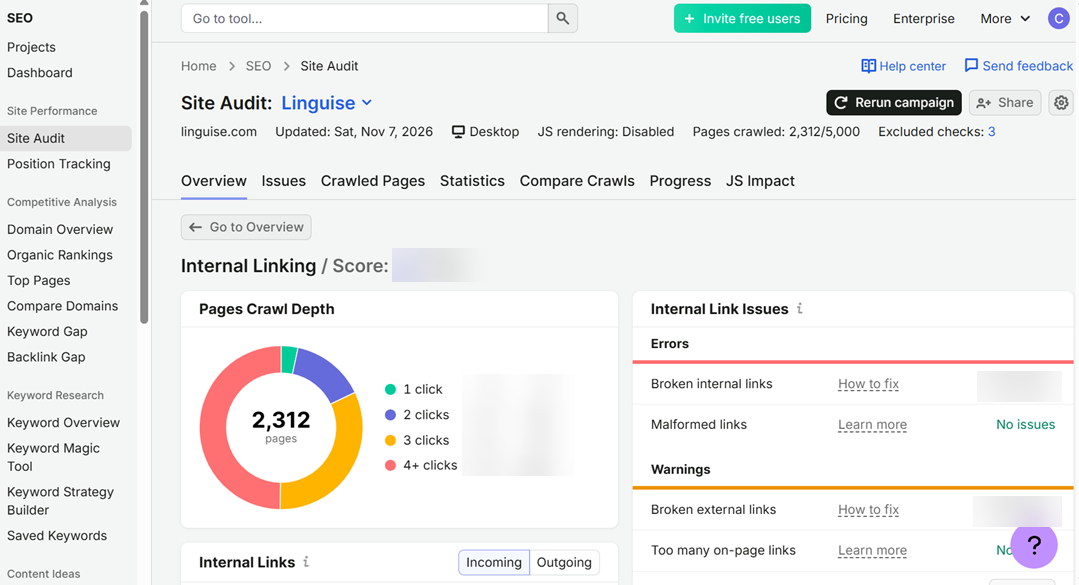
For a multilingual website, compare the source and destination URLs to identify translated pages that still link to the default language. For example, check whether a page under /fr/ links to another French URL or unexpectedly directs visitors to the English version.
How Linguise handles multilingual internal links
Linguise helps maintain consistent multilingual internal linking by automatically translating website content and adjusting internal links to match the selected language. This allows visitors to navigate between translated pages without constantly being redirected to the default-language version.
Automatic internal link translation
Linguise automatically handles internal URLs across language versions, so you do not need to manually edit every internal link on translated pages. This helps ensure that links lead to the corresponding pages in the visitor’s selected language.
For example, when a visitor reads an English article and clicks a link to another page, Linguise handles the internal URL so the visitor can access the corresponding translated page in their selected language, provided that translation is available.
Translated URLs
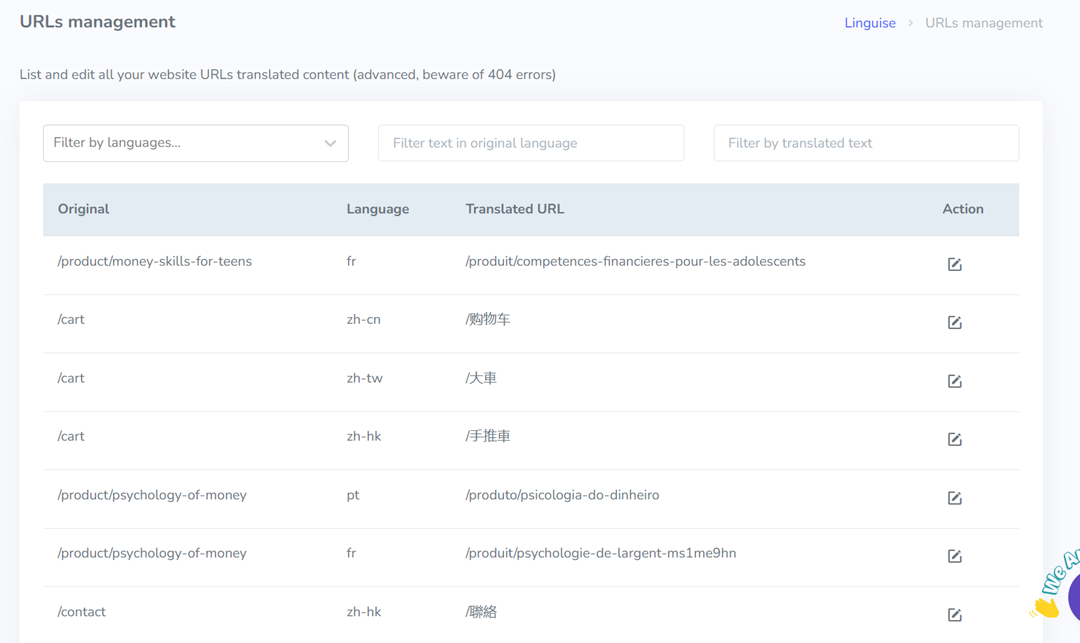
Linguise also supports translated URLs, allowing page addresses to match the language of the content. For example, an English URL such as example.com/about-us can have a French version such as example.com/fr/a-propos.
You can review and edit existing URL translations through the Linguise dashboard. Go to the translation management section to search for a URL by language, original URL, or translated URL, then update its translation when needed.
Verify language-specific links
Although Linguise automatically handles internal links, it is still important to check your website after translation. This helps you identify missing translations, incorrect destinations, or links generated by third-party elements that may not behave as expected.
For example, open a Spanish blog post and click a link to a related article. Check whether it opens the Spanish version rather than returning to the English page. Repeat this process across important pages and language versions.
You can also use the Linguise live editor to review and edit external URLs in translated content. Keep in mind that internal URLs are automatically controlled by Linguise and cannot be edited through this feature.
Configure URLs to prevent linking issues
Correct URL configuration helps Linguise recognize and serve the appropriate language versions of your pages. During setup, make sure the multilingual URL structure is configured correctly so visitors can access translated pages through their language-specific URLs.
You can also manage URL translation behavior using Linguise’s URL exclusion rules. For example, you can choose whether a specific page’s URL should remain untranslated while its content is still translated. This is useful when certain URLs need to stay consistent across languages.
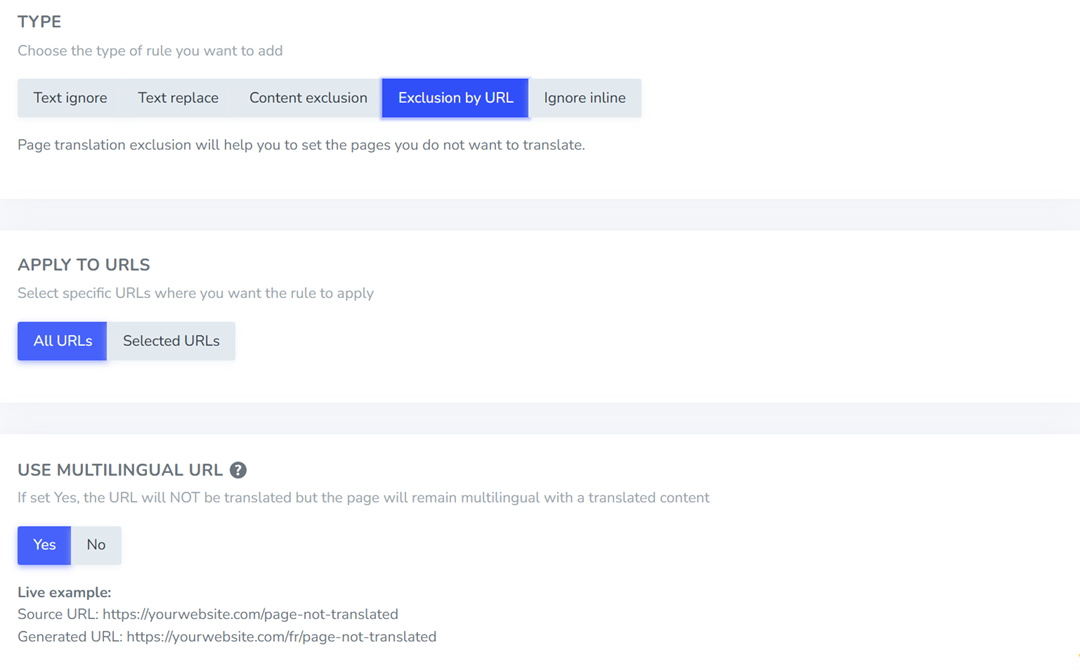
Before applying URL changes, review the affected pages and test their links. Changes to translated URLs can create 404 errors if the new addresses are not handled correctly, so make sure the updated URLs work as expected.
Conclusion
Multilingual internal linking plays an important role in keeping website navigation consistent across different language versions. When internal links point to the default language instead of translated pages, visitors may struggle to find relevant content, while search engines may have difficulty discovering and understanding your multilingual pages. Regularly auditing links in body content, menus, footers, breadcrumbs, and related posts helps prevent these issues.
With automatic internal link translation and translated URL support, Linguise helps connect visitors to the appropriate language versions of your website. You can also review URL settings and verify links to maintain a consistent browsing experience. If you want to simplify multilingual link management, consider using Linguise for your website translation needs.